
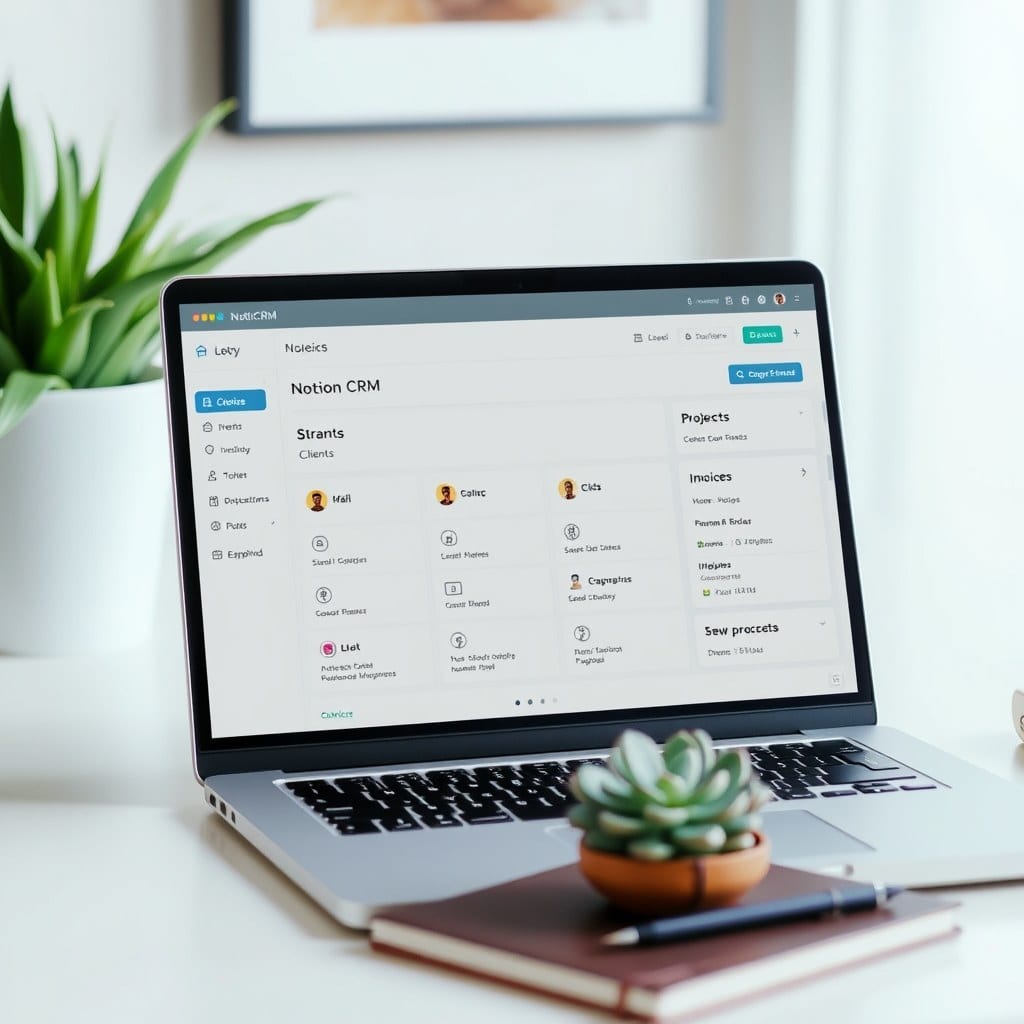
If your Notion workspace feels like a chaotic junk drawer, you’re not alone. Most solopreneurs start with good intentions, but within weeks, their pages multiply, databases sprawl, and the thought of opening Notion becomes exhausting. The fix is not to add more structure—it’s to subtract. In this guide, I’ll walk you through how to set up a Notion dashboard that feels calm and actually helps you get work done.
## Start with a single home page
The biggest mistake I see is having multiple dashboards for different projects. You don’t need a ‘work dashboard’ and a ‘personal dashboard.’ You need one home page that serves as your command center. Create a new page called ‘Home’ and choose ‘Full page’ in Notion. This is where you’ll land every time you open the app.
On this page, include only three things: a short welcome line, a daily focus block, and a list of your top three priorities for the week. That’s it. Resist the urge to add anything else. If you find yourself adding a calendar, a habit tracker, and a reading list, step back. Those belong on subpages, not on your main dashboard.
## Use linked databases for projects and tasks
Instead of creating separate task lists for each project, create a single database called ‘Tasks’ and use linked views. Set up a database with properties like Status, Due date, and Project. Then, on your Home page, add a linked view that filters to only today’s tasks or tasks with a due date this week. This gives you a clean, focused view without any setup overhead.
For project-related content—meeting notes, research, or client files—create another database called ‘Projects’ and use relation properties to connect tasks to projects. This might sound technical, but Notion makes it simple: in the Tasks database, add a relation property pointing to Projects. Then you can link each task to a specific project and view everything from that project’s page.
## Create a simple weekly review routine
The calmest dashboards aren’t just about design; they’re about maintenance. Set aside 15 minutes each Friday to update your Notion: archive completed tasks, move undone tasks to next week, and clear out any stray notes. This is a non-negotiable habit if you want your dashboard to stay useful.
To make this easier, create a template button on your Home page that clears your daily focus block and sets up the next day. You can also use a recurring reminder in your calendar or a Notion reminder to prompt you. The goal is to keep the system clean so that when you open Notion on Monday, it feels fresh—not overwhelming.
## Design with whitespace and soft colors
Visual clutter contributes to mental clutter. Use a calm color palette: think warm beige, sage green, or soft terracotta. In Notion, you can change the background to a soft tone and use callout boxes to highlight important information. Keep your headings consistent: use H1 for page titles, H2 for sections, and H3 for subsections. This creates a clear hierarchy that guides your eye.
Also, avoid covering your dashboard with icons and emojis. While they can be cute, they add noise. Instead, use a few subtle symbols (like a simple circle for a priority) or just rely on text. The goal is to make your workspace feel like a breath of fresh air, not a pixelated explosion.
## Final thoughts
Your Notion dashboard should be a place you want to go, not a source of dread. By starting small, using linked databases, practicing a weekly review, and designing with restraint, you can build a system that supports your work without taking over your life. It takes a little upfront effort, but the payoff is a workspace that feels as calm as a meadow.
If you’d rather skip the setup, Meadow Goods offers a range of templates that do the work for you. Each template is designed with the same principles: simplicity, calm, and functionality. Check them out and see how good a well-organized space can feel.