If you’ve ever sent a client a shared Google Doc and watched them ignore it, you know the problem: clients don’t want another link. They want a place that feels intentional and easy. A Notion client portal can be that place, but only if you design it around their behavior, not your desire to show off your database skills.
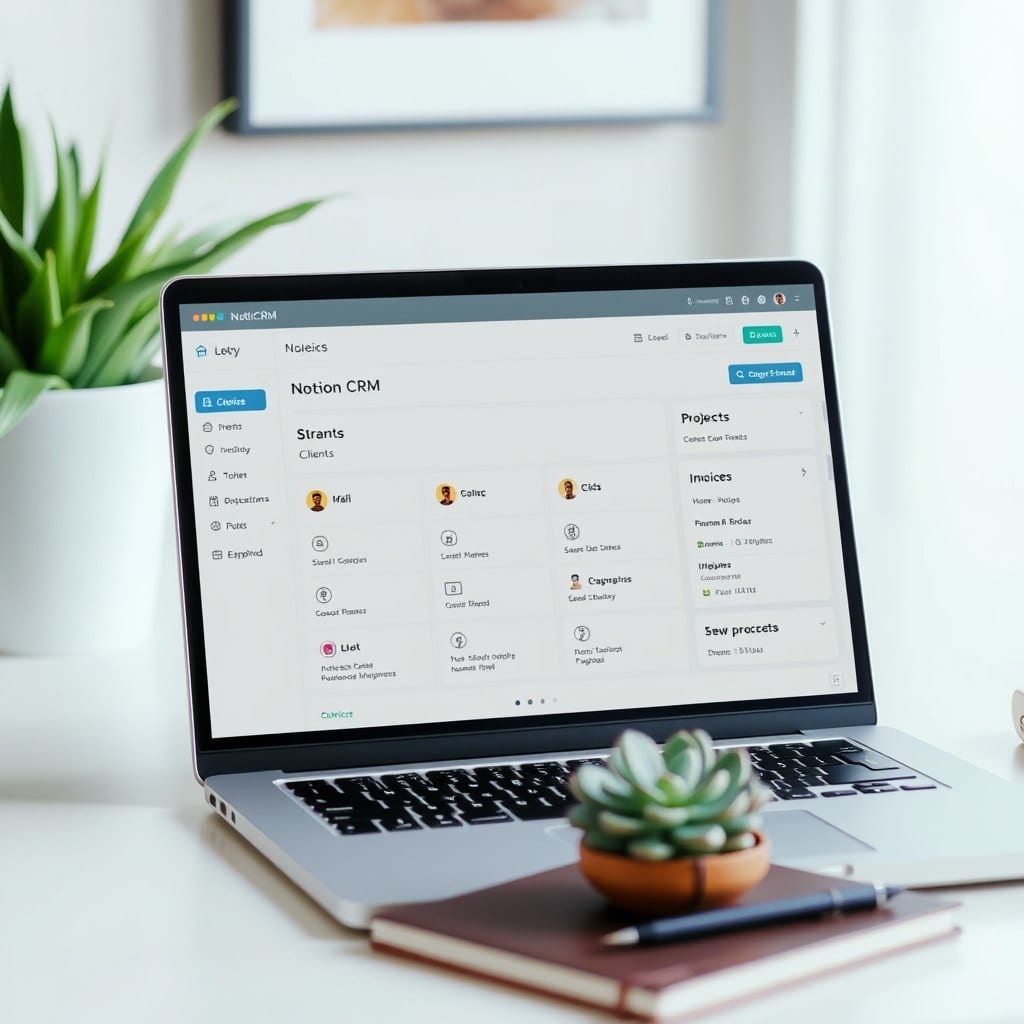
Start with the home page. This is the lobby. It should answer three questions in under five seconds: Where are we in the project? What do I need to do next? How do I reach you? I like a simple header with the client’s name, a status callout (“Phase 2: Design in progress”), and two buttons: “View Deliverables” and “Book a Call.” No nested pages on the first screen. No databases. Just orientation.
Next, create a deliverables database. This is where you’ll track every asset, document, or milestone. Use a kanban view grouped by status: Not Started, In Progress, In Review, Complete. Each card should include a due date, a file link, and a short description. Clients can drag cards themselves if you give them edit access, which turns the portal into a collaboration tool rather than a static report.
The most common mistake is over-sharing. You don’t need to give clients access to your internal task list, your time tracker, or your brainstorming notes. That’s your backstage. The portal is the stage. Keep it curated. I usually create a separate “Client Area” page inside my workspace and only share that page, not the parent.
Another mistake: using jargon. Instead of “Sprint 3 Retrospective,” say “Week 3 Check-in.” Instead of “Asset Pipeline,” say “Files for Review.” Your clients are not project managers. They’re busy people who hired you to make their life easier. Use their language.
Feedback loops are where portals live or die. If a client has to email you a comment, the portal failed. Add a simple form or a comment section directly on each deliverable. In Notion, you can enable comments on any page. I also add a “Feedback” database where clients can log requests, and I link it to the deliverable. This creates a paper trail and reduces “I thought I mentioned that” moments.
Automations can help, but don’t overdo it. A simple recurring reminder to review deliverables every Monday is enough. If you’re on a paid Notion plan, you can use database automations to send a Slack message or email when a status changes. But even without automations, a well-structured portal saves hours of back-and-forth.
Design matters more than you think. Use a cover image that matches your brand — a soft gradient, a nature photo, something calm. Choose a serif font for headings if you want a boutique feel. Keep the color palette to two or three tones. This isn’t about decoration; it’s about signaling that you’re organized and thoughtful. Clients pick up on that.
Finally, onboard your clients. Don’t just send a link. Record a two-minute Loom video walking through the portal. Highlight where to find files, how to leave feedback, and how to book a call. This one step reduces support questions by half. I’ve seen coaches cut their email volume by 40% just by adding a welcome video.
A client portal isn’t a one-time build. After each project, ask the client what was confusing. Tweak the structure. Over time, you’ll have a reusable template that feels custom to every client but takes minutes to set up. That’s the sweet spot: personal enough to feel bespoke, systematic enough to scale.
If you’d rather skip the build, our Client Portal template for Notion includes all of these elements — home page, deliverables database, feedback form, and a setup guide. It’s available for instant download in the shop.